
Knowing how to safely update WordPress plugins means treating an update as a change to your business website, not just a button to click. A plugin can affect forms, payments, page layouts, security features, or other tools your customers rely on. A repeatable process helps you reduce the chance of disruption and respond clearly if something goes wrong.
Use this WordPress plugin update checklist before making changes to a live site. If the site supports important customer or staff workflows, arrange a suitable maintenance window and make sure someone responsible can check the results.
Before you update: prepare the site
Confirm who can access the site and restore it
Before starting, confirm that you can access the WordPress dashboard and know who can reach the hosting account or site manager if the site becomes unavailable. Do not begin an update if you have no clear way to recover the site.
Make a backup of both the website files and the database. The files include the WordPress installation, themes, plugins, and uploaded media. The database contains site content and settings. A backup should be recent enough for your needs and usable for restoration, not simply listed as completed by a backup tool. Know where it is stored and who can restore it.
Consider what a full restoration could replace. If your site has recently received form submissions, orders, or other customer data, coordinate with the person managing the site before restoring an older copy. Recovery may need to preserve newer information.
Review the update and compatibility information
Read the plugin’s update notes before installing it. Look for changes that affect features your site uses, known issues, or instructions about compatibility. Check whether the plugin appears to be maintained and whether its documentation or support information raises concerns.
Also consider whether the update is connected to a security issue. WordPress provides information about security in its WordPress security resources. If you are unsure how an update affects your website or its other components, ask the site manager or hosting provider before proceeding.
Use a staging site when possible
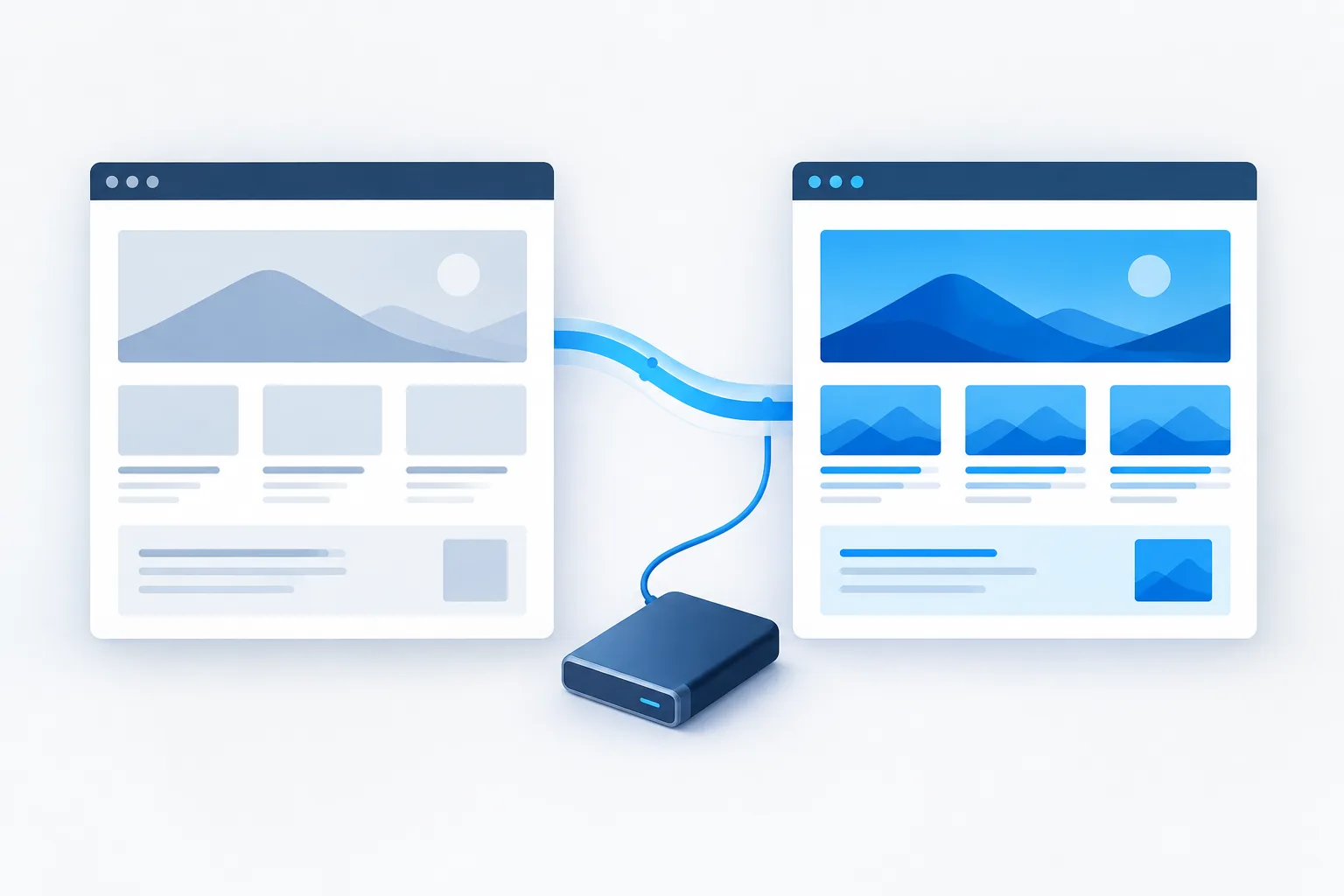
A staging site is a separate copy where you can try changes before applying them to the public website. When it is available and kept sufficiently current, use it to apply the plugin update and check for conflicts with the site’s theme, other plugins, and custom features.
Staging is especially useful when a plugin supports a customer-facing or business-critical function. It is not a substitute for a backup, and a successful staging check does not prove that the live site will behave exactly the same. Still, it can reveal obvious problems before visitors encounter them.
Update in a controlled way
Choose a time when someone can monitor the site and respond if a problem appears. Avoid updating during a busy period when a broken form or unavailable page would be difficult to manage.
For a small, low-complexity site, updating plugins individually makes it easier to identify which change caused an issue. If the site has many updates, related dependencies, or a site manager who follows a tested process, updates may be handled in a controlled batch. Either way, avoid making a long series of unrelated changes without checking the results in between.
Keep a record of what changed, including the plugin and the result of the update. If a problem occurs, that information helps narrow down the cause. Do not assume the update succeeded just because WordPress displays a completion message.
Test the website after plugin updates
Start with the pages and actions that matter to your business. A homepage that loads does not confirm that the rest of the site is working. Test from a visitor’s perspective, and check the admin area for warnings or unexpected behavior.
- Submit contact, appointment, or quote request forms and confirm that the expected response arrives.
- Check phone links and other contact details, including how they appear on a mobile device.
- If the site accepts payments, test the relevant customer journey using an appropriate test process. Do not create an unintended live charge.
- Sign in to customer portals or other restricted areas and confirm that access works as expected.
- Open downloadable documents and check that links lead to the correct files.
- Review important pages for layout problems, missing content, or broken navigation.
Check any other workflow your customers or staff rely on. If something fails, note the page, action, and time, and avoid continuing with more updates until you understand the problem.
If an update breaks the site
First, stop making additional changes. Identify which plugin was updated and what behavior changed. If the site is still accessible, record the issue and contact the person responsible for managing the site.
Depending on the problem and available access, recovery may involve rolling back the affected plugin or restoring a verified backup. These steps can require hosting access or technical knowledge. If you are unsure, do not delete files or attempt a broad restoration on your own. Contact the hosting provider or site manager and explain what changed.
If the website is unavailable, focus on getting the right support involved promptly. For a separate response process in case you suspect unauthorized access, see what to do after a WordPress site is hacked. A failed update and a security incident are different situations, so do not assume one is the other.
Should you enable automatic plugin updates?
Automatic updates can reduce the chance that a plugin remains out of date, but they do not remove the need for backups, monitoring, and testing. Consider how important the plugin is, how much the site changes, and whether someone will notice and address a failure.
They may suit a site with reliable backups, a clear recovery path, and someone checking that its important features continue to work. For a website that handles key customer interactions, automatic updates should be part of a maintenance plan rather than treated as proof that an update went well. Review update notifications and confirm that the site’s essential workflows still function.
Keeping updates and recovery in a planned routine is one part of proactive technology care. Zevonix provides 24/7 monitoring and help desk support for businesses in Palm Coast, Flagler Beach, Bunnell, and all of Flagler County. For a broader look at planned support, read about proactive IT support compared with break-fix support.
Frequently asked questions
What should I do before updating WordPress plugins?
Confirm access to the site and its hosting or management support, create and verify a restorable backup of the files and database, review update notes, and test on staging when possible.
Is it safer to update plugins one at a time or all at once?
Updating individually can make it easier to identify the source of a problem. A controlled batch may be appropriate when updates are managed as part of a tested process. In either case, check the site before continuing with more changes.
How can I tell whether a plugin is compatible?
Review its update notes and documentation for compatibility details, known issues, and whether it is maintained. When available, test it on staging before updating the live site.
What should I do if an update breaks my website?
Pause further changes, identify the update and the affected function, then contact the site manager or hosting provider. They can determine whether to roll back the plugin or restore a verified backup.
Should my business enable automatic plugin updates?
It depends on the site’s importance and whether backups, monitoring, testing, and recovery support are in place. Automatic updates should not replace checking that important customer-facing functions still work.
Make updates part of routine website care
A safe update process starts with a restorable backup, uses staging where practical, and ends with tests of the workflows your business depends on. If you need help planning website maintenance or broader IT support, contact Zevonix at (386) 260-0777.